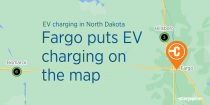
The number in the circle indicates the total number of charging spots in an area. The colors show the breakdown of charging spots by status (green means available, blue means in use and gray means...
If a charging spot is available, it is shown as green. If the spot is in use, it is shown as blue. If the status is out of service or closed, it is shown as gray. Round pins indicate Level 2 AC...
Here’s how to use filters to find the EV charging spots you need: Open the ChargePoint app, or the charging map, which will show your location so you can easily find charging spots near you. From the...
The easiest way to find an available charging station is through the ChargePoint app or our charging map. Here’s how to find a place to charge: With the ChargePoint app or our charging map, sign up or...
If every charging spot is in use, don’t worry, you have options. Sometimes you arrive somewhere — like work, a shopping center or the supermarket — and all the charging spots are being used by other...
If you are at a ChargePoint station with an orange faceplate without a screen, you can start a charging session a few different ways. If the station has a QR code: In North America, you can start a...
The ChargePoint app allows you to find, charge and pay for charging all from one place, making renting an EV easy to navigate. Use the ChargePoint app to sign up or log into your account. Tip: If you...